Sign in or create your account
Klaim signs you in with Certula Connect. Returning users tap “Sign in with Certula”; new users tap “Create an account” — your own private workspace is set up automatically on first login.
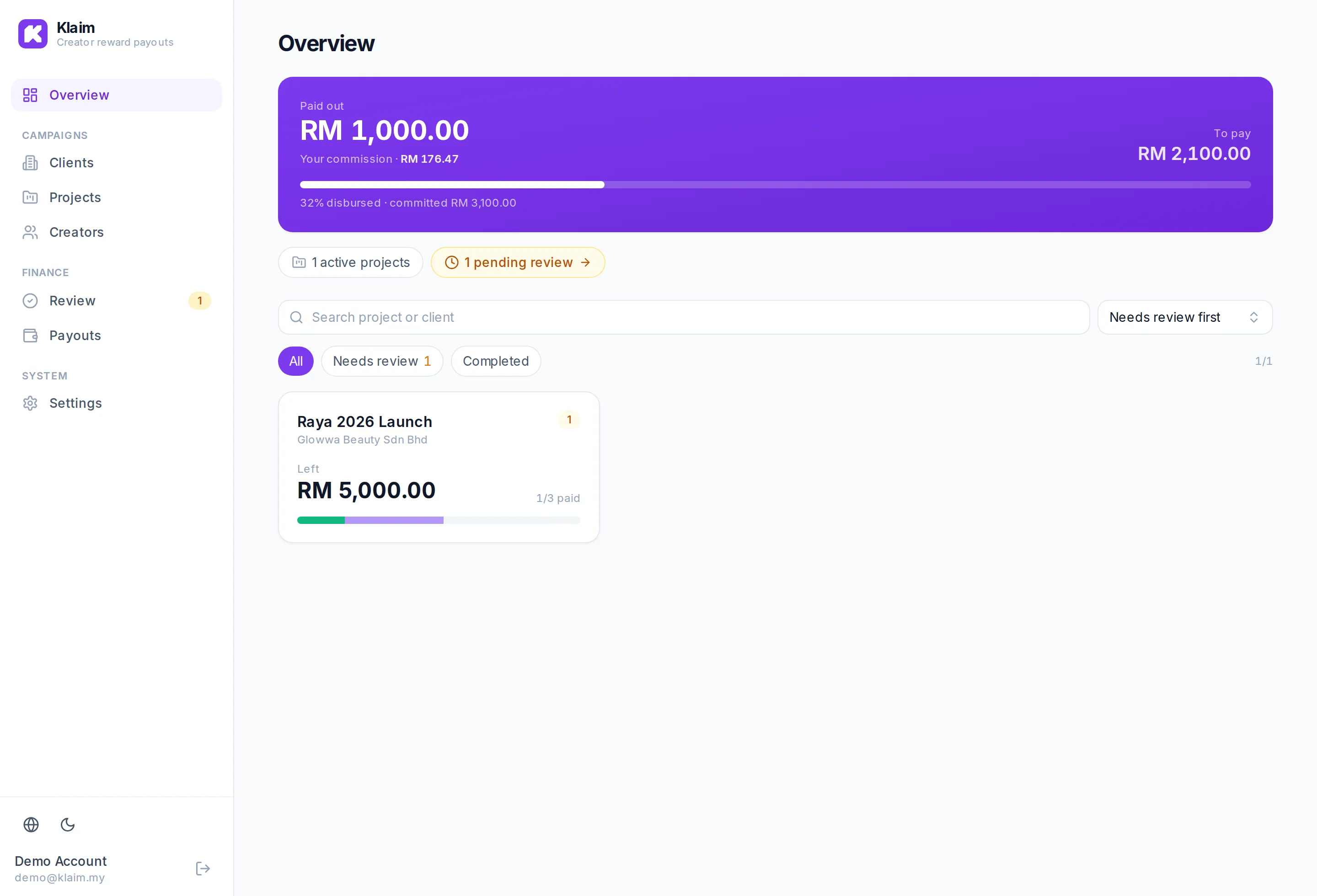
Overview — your money at a glance
The home screen leads with money: total paid out, your commission earned (your revenue), and how much is still to pay — plus quick links to active campaigns and anything pending review.
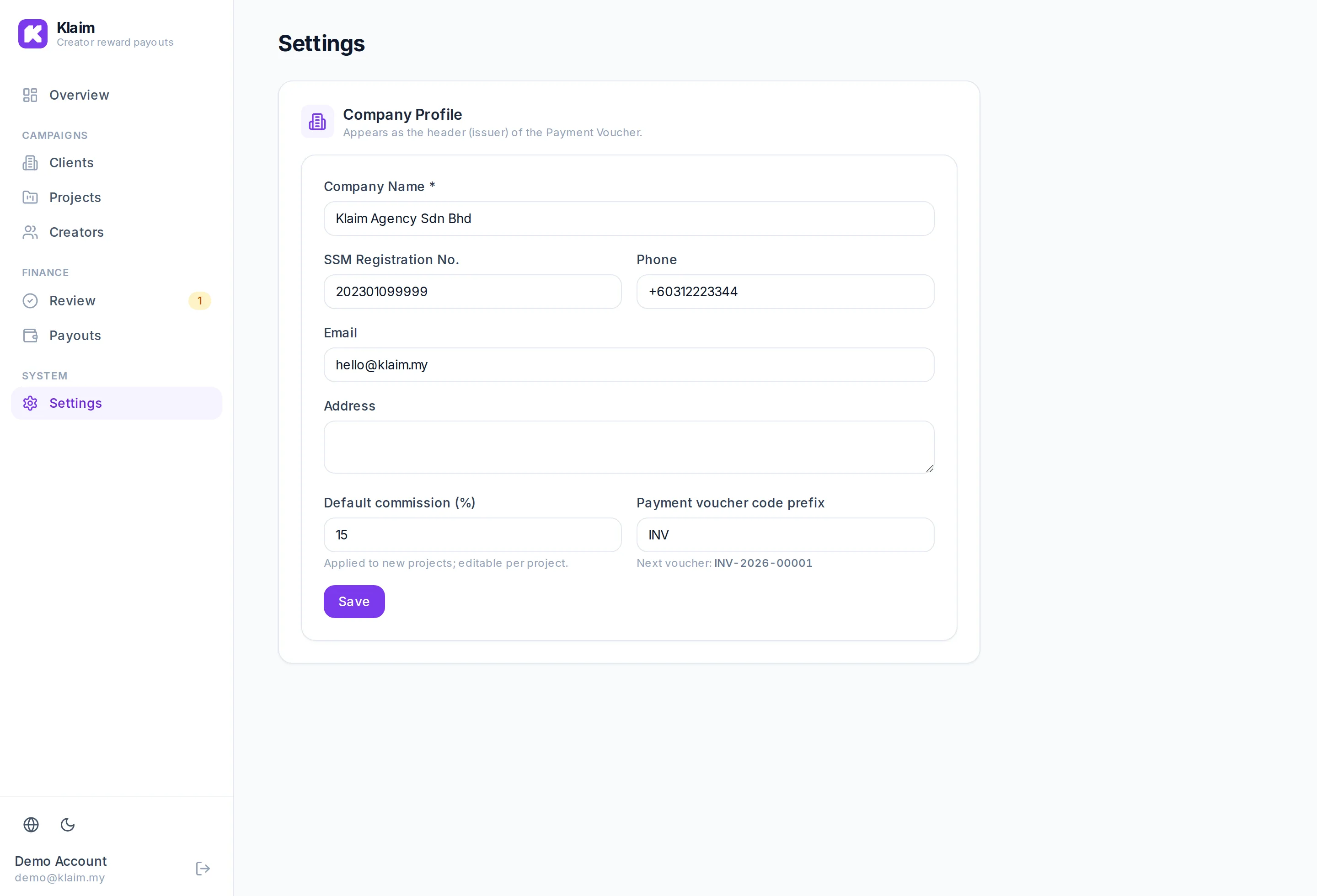
Set up your company
Under Settings, enter your company name, SSM number, contact details and a default commission %. These appear on your invoices and pre-fill every new campaign.
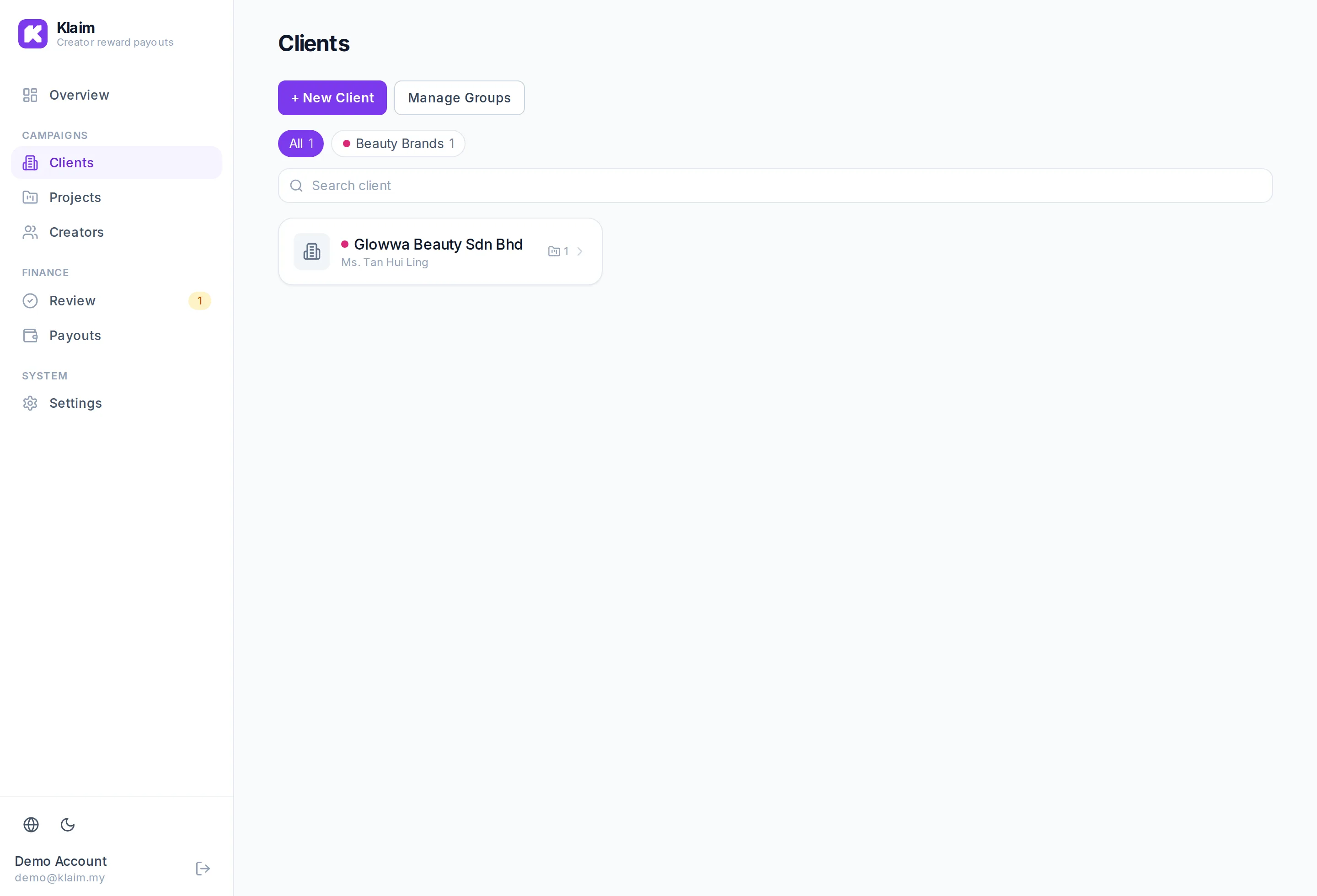
Add your clients (brands)
Clients are the brands you run campaigns for. Group them by type and add new ones from the toolbar.
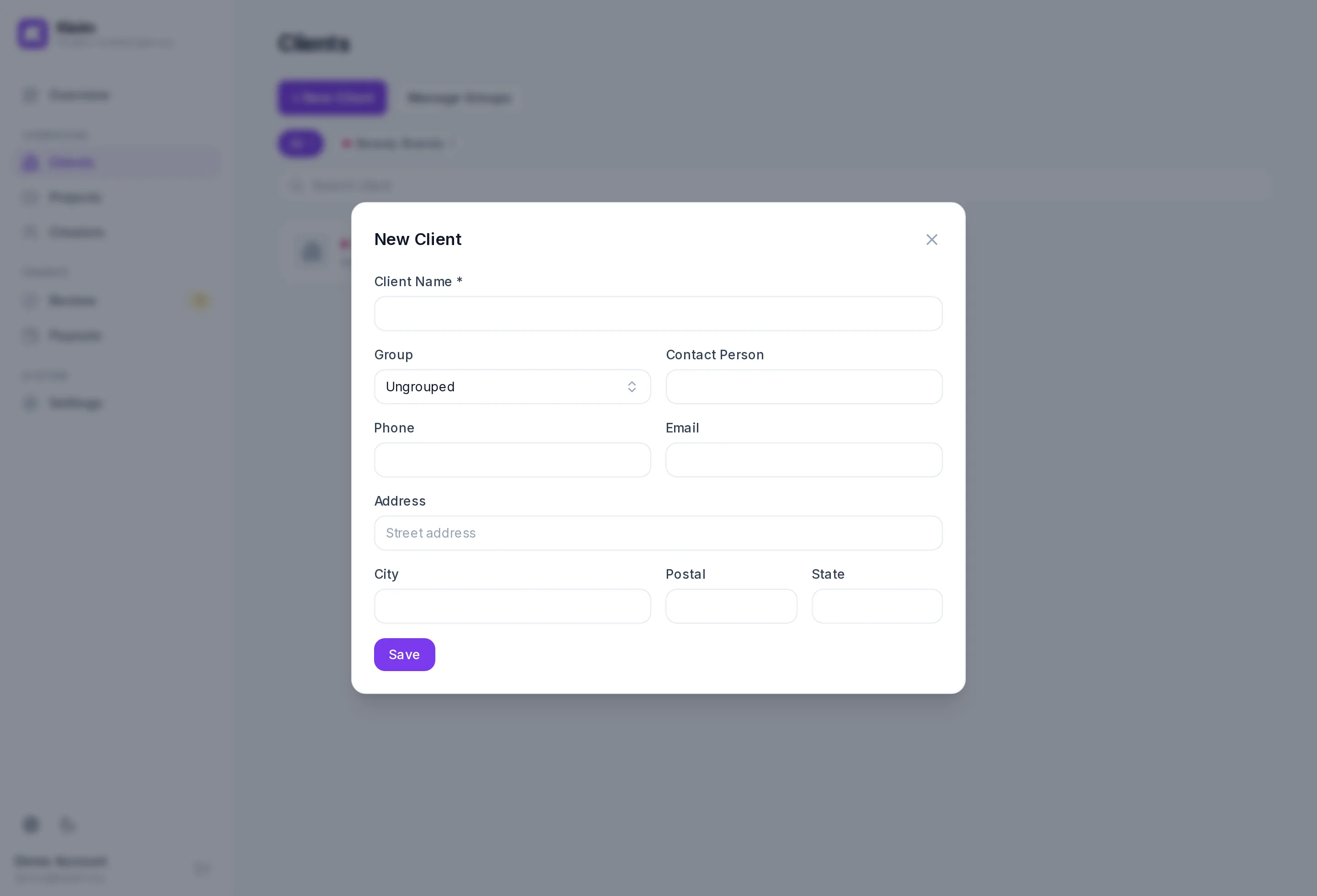
New client
The same popup is used for every add/edit in Klaim. Enter the client’s name, assign a group, and add contact + address details.
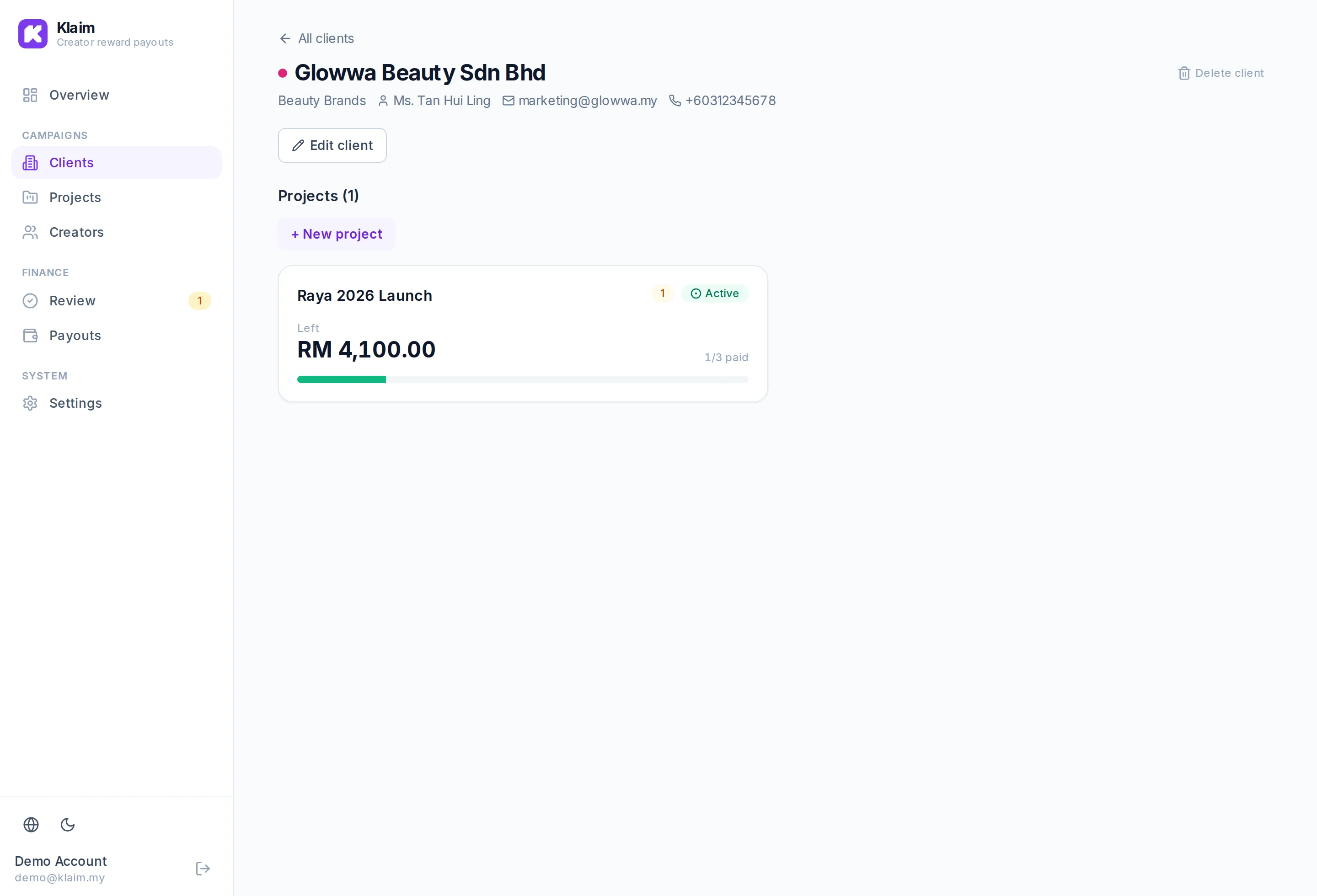
Client detail
Open a client to see their contact info and every campaign you’ve run for them in one place.
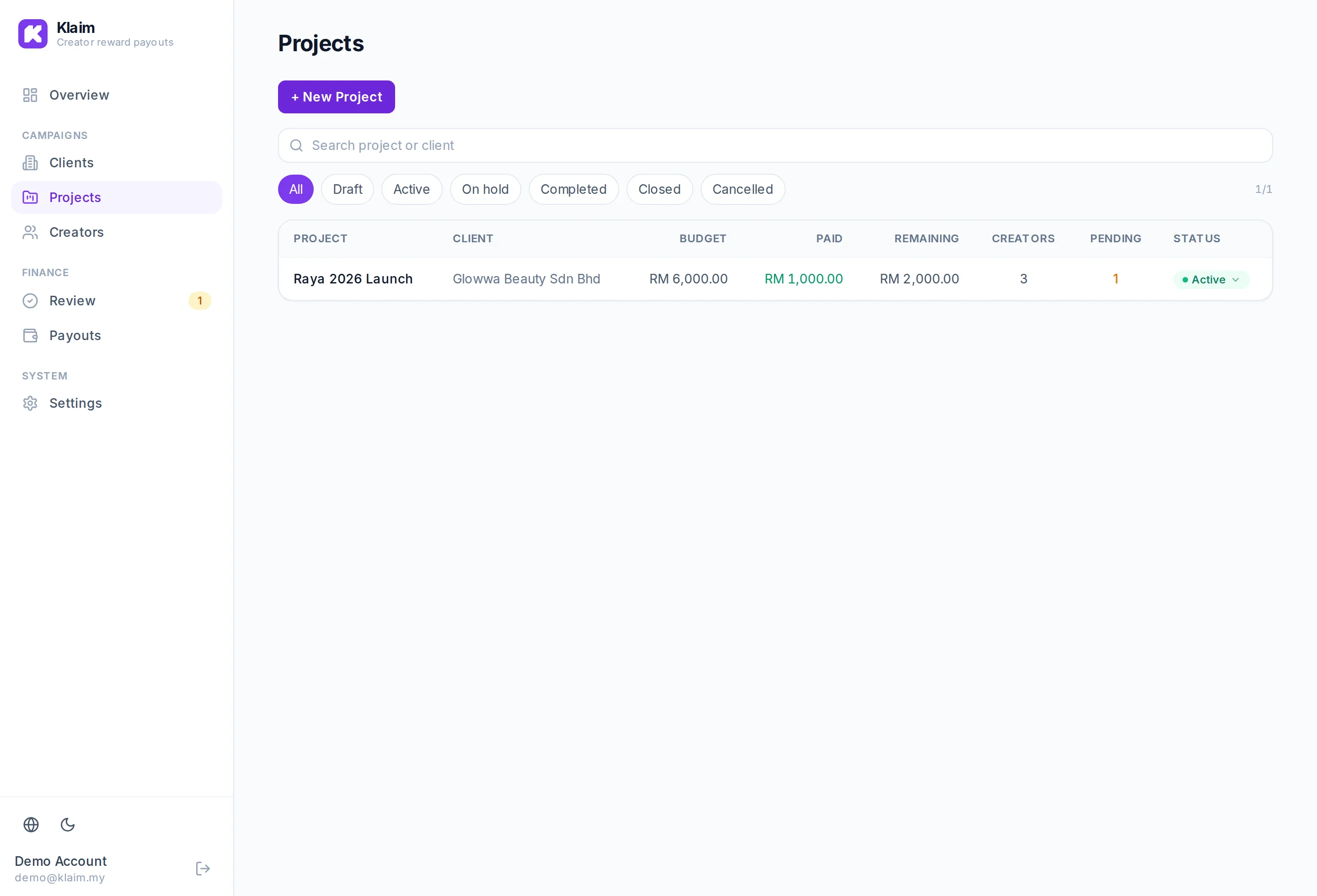
Campaigns (projects)
Projects are campaigns. The list shows budget, creator count, progress and status, with search and filters.
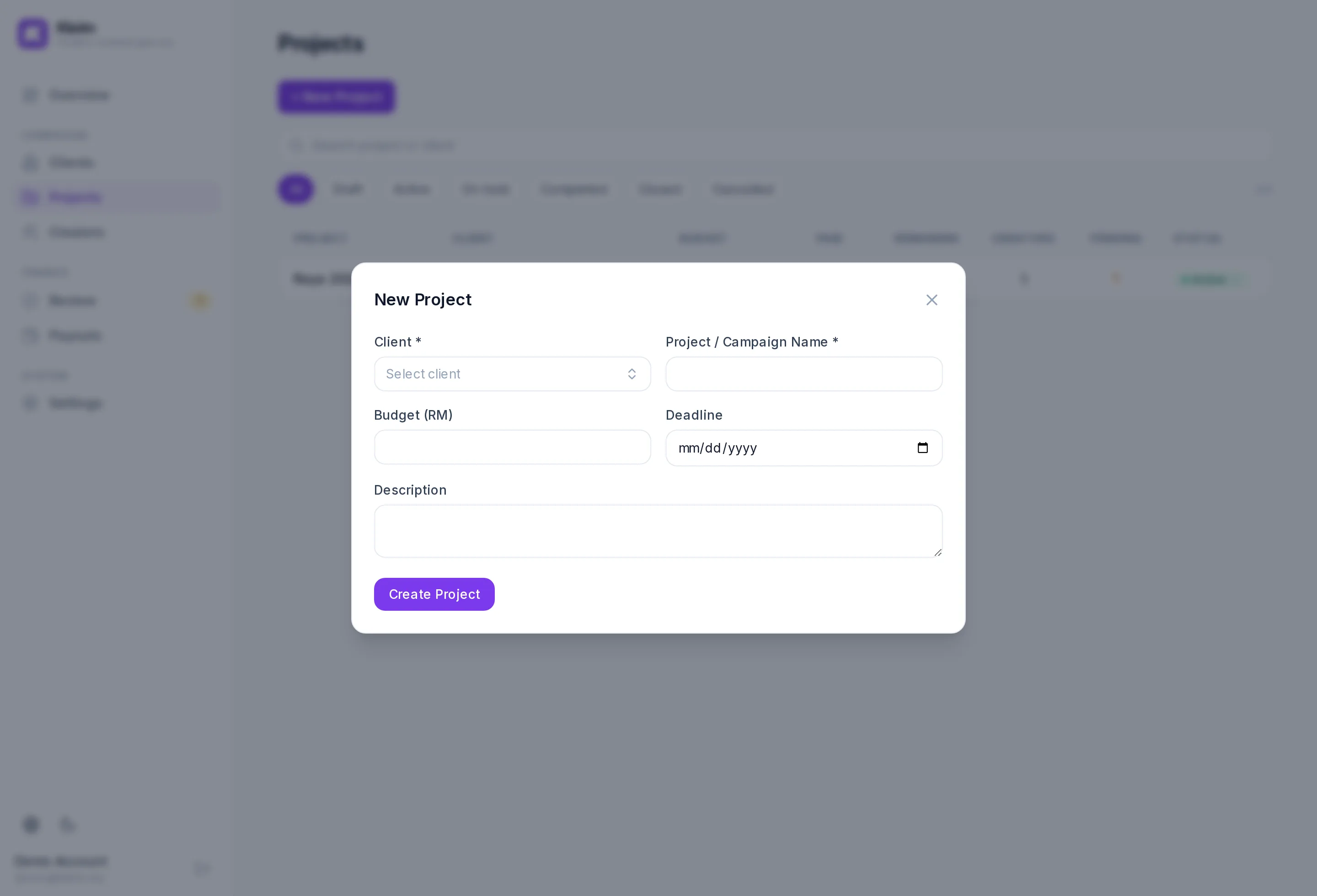
Create a campaign
Pick the client, name the campaign and set the budget. Your commission (your margin) is deducted from the budget; the rest is the creator reward pool.
Campaign hub
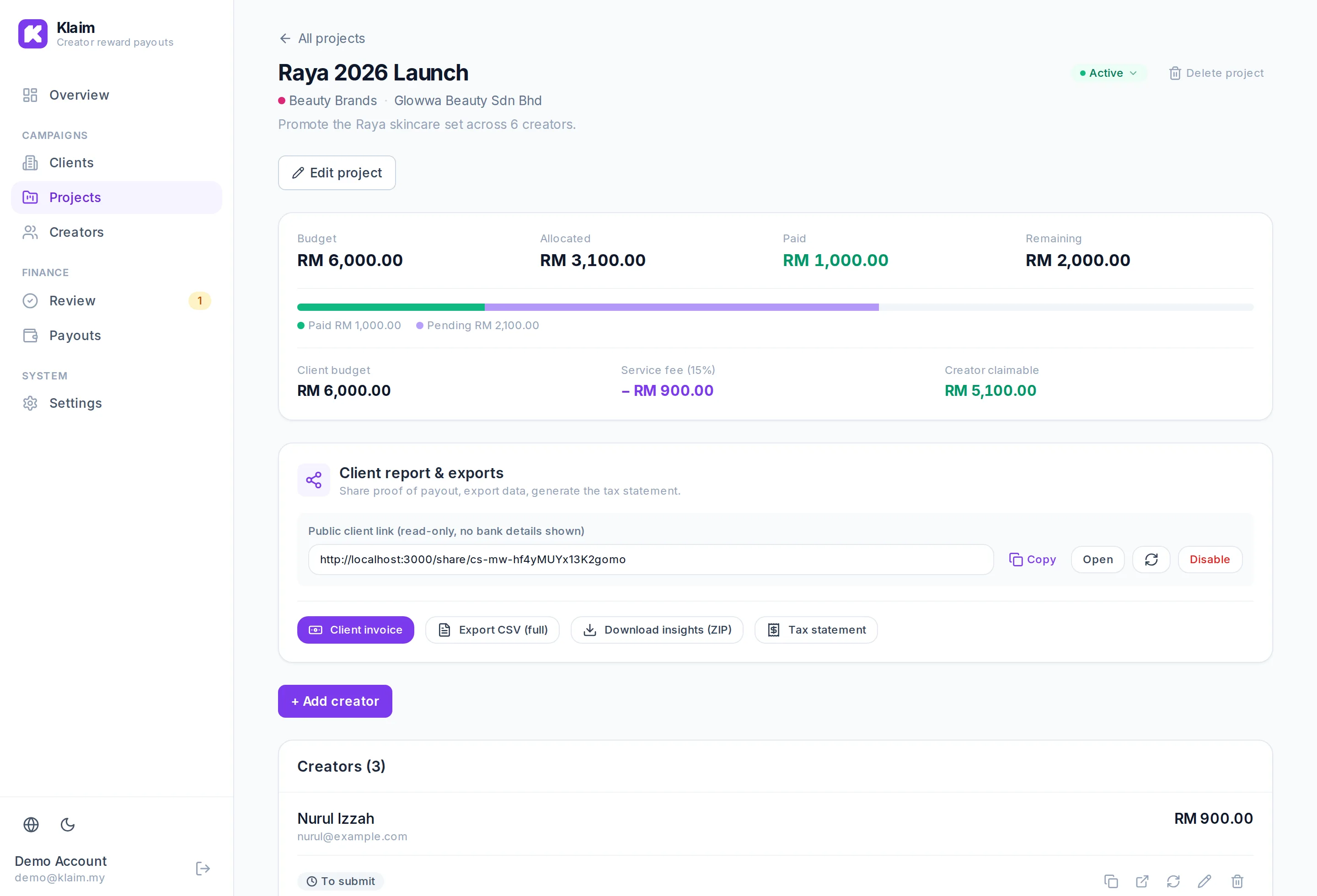
Everything for one campaign: the budget split, add creators with their reward, copy each creator’s claim link, the read-only client share link, exports, and the client invoice.
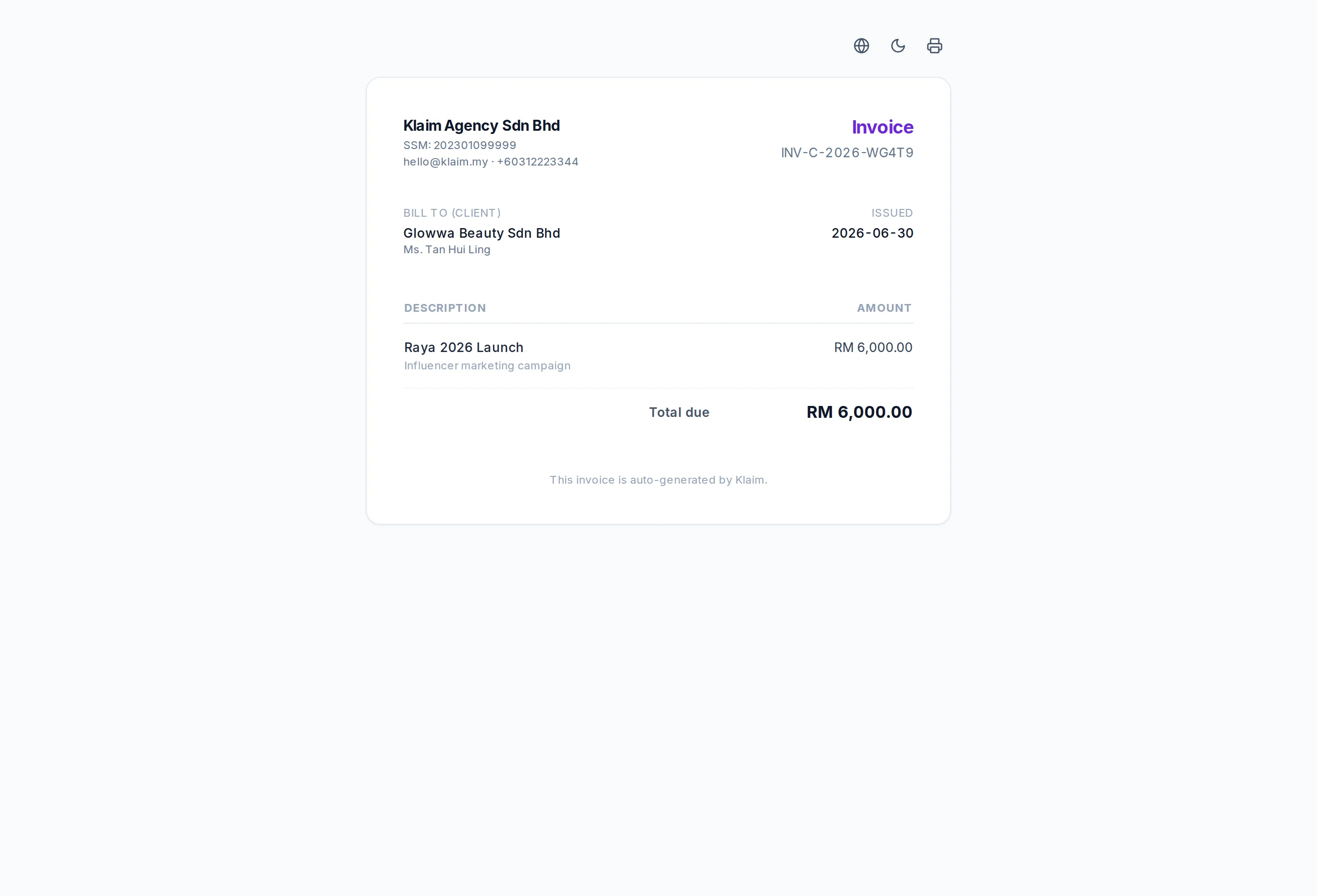
Client invoice
You’re the middleman: bill the client the full marketing budget. The invoice is issued from your company to the client, per campaign — clean and ready to print or send.
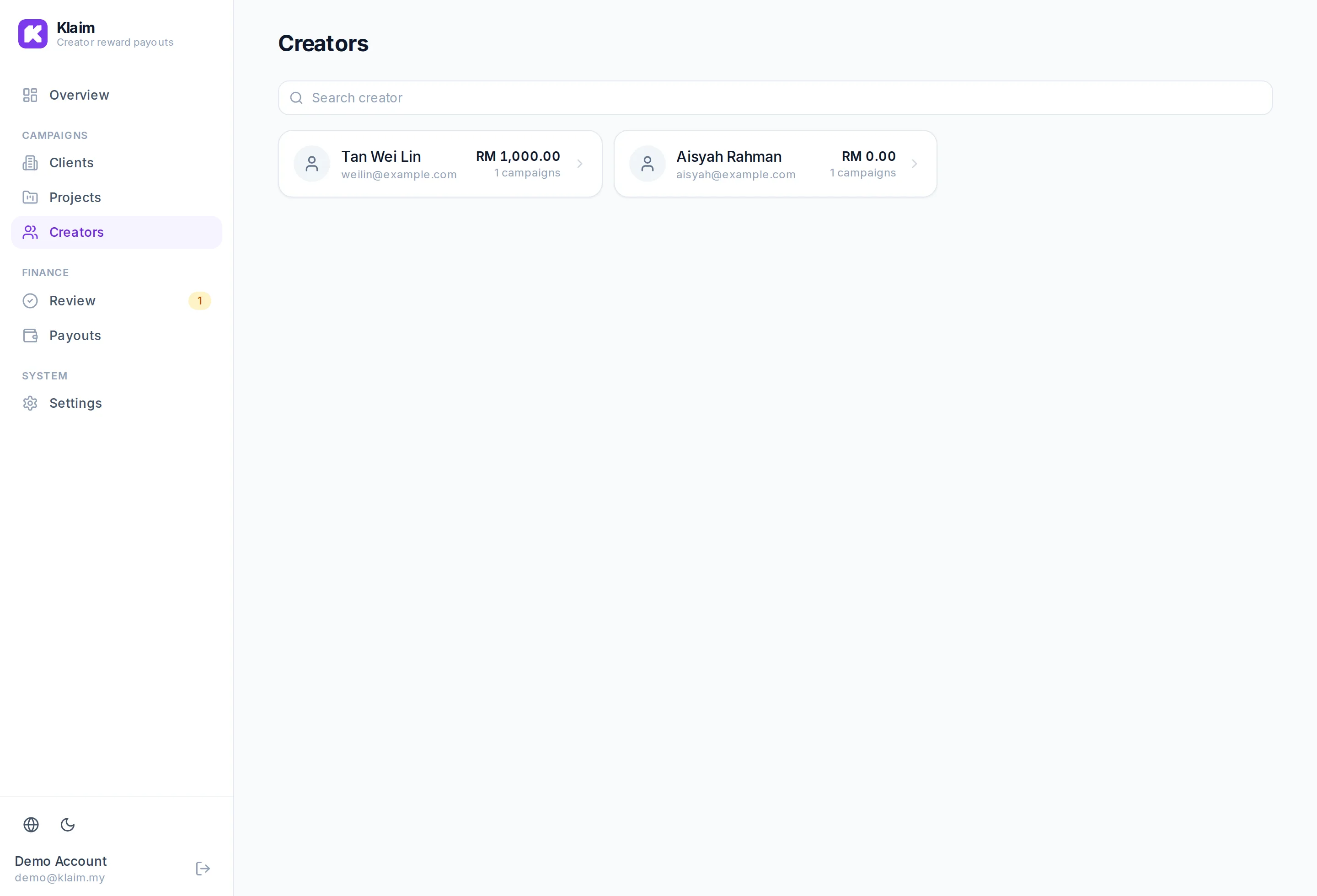
Creator roster
A reusable directory of creators. Saved KYC + bank details mean repeat creators don’t re-enter anything on the next campaign.
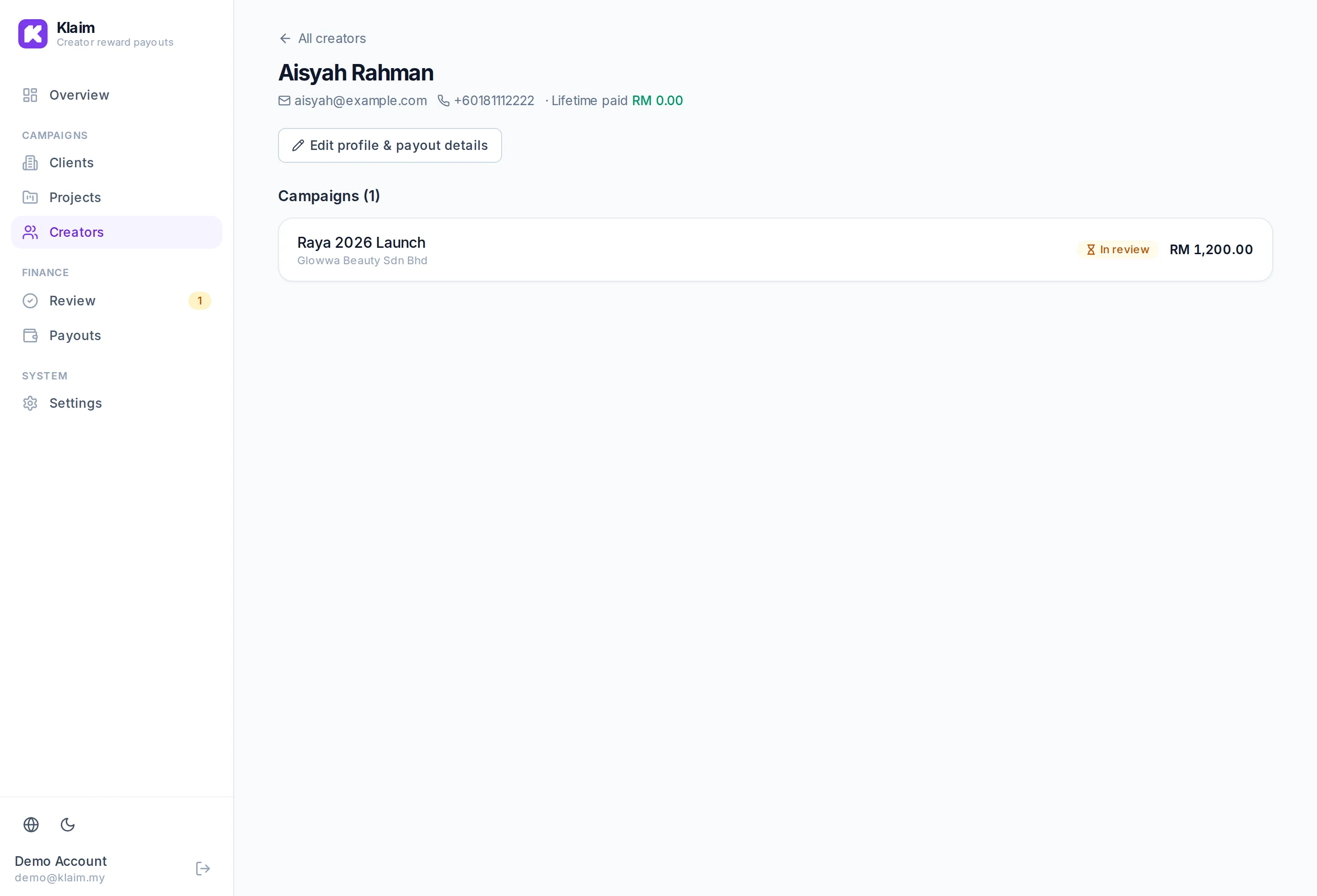
Creator profile
Each profile stores the creator’s IC/tax number, address and payout method (bank or DuitNow) for fast, accurate payments.
Review submissions
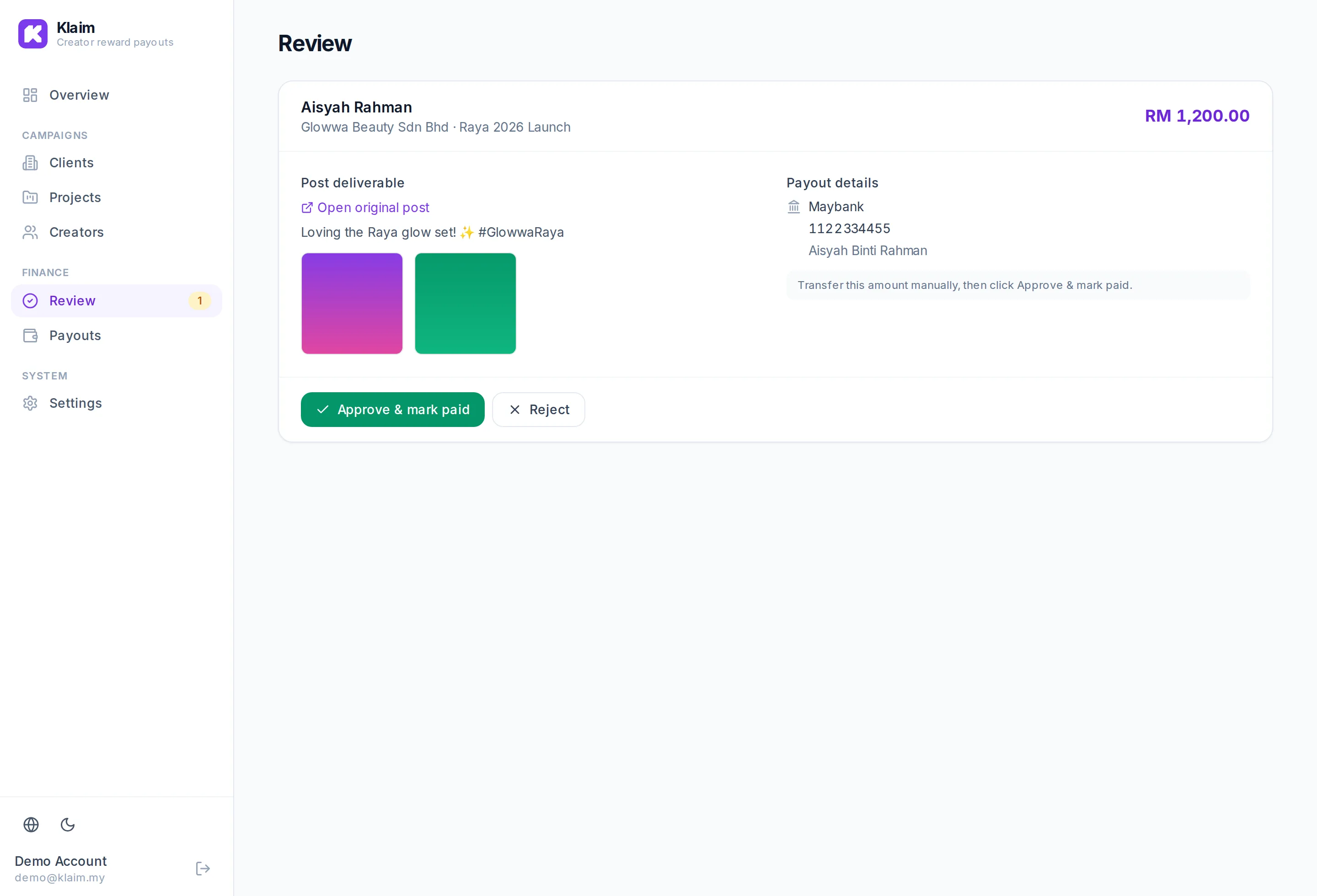
When a creator submits, it lands here. View the post, images and caption, then approve (move to payout) or reject. The sidebar badge shows what’s waiting.
Payment records
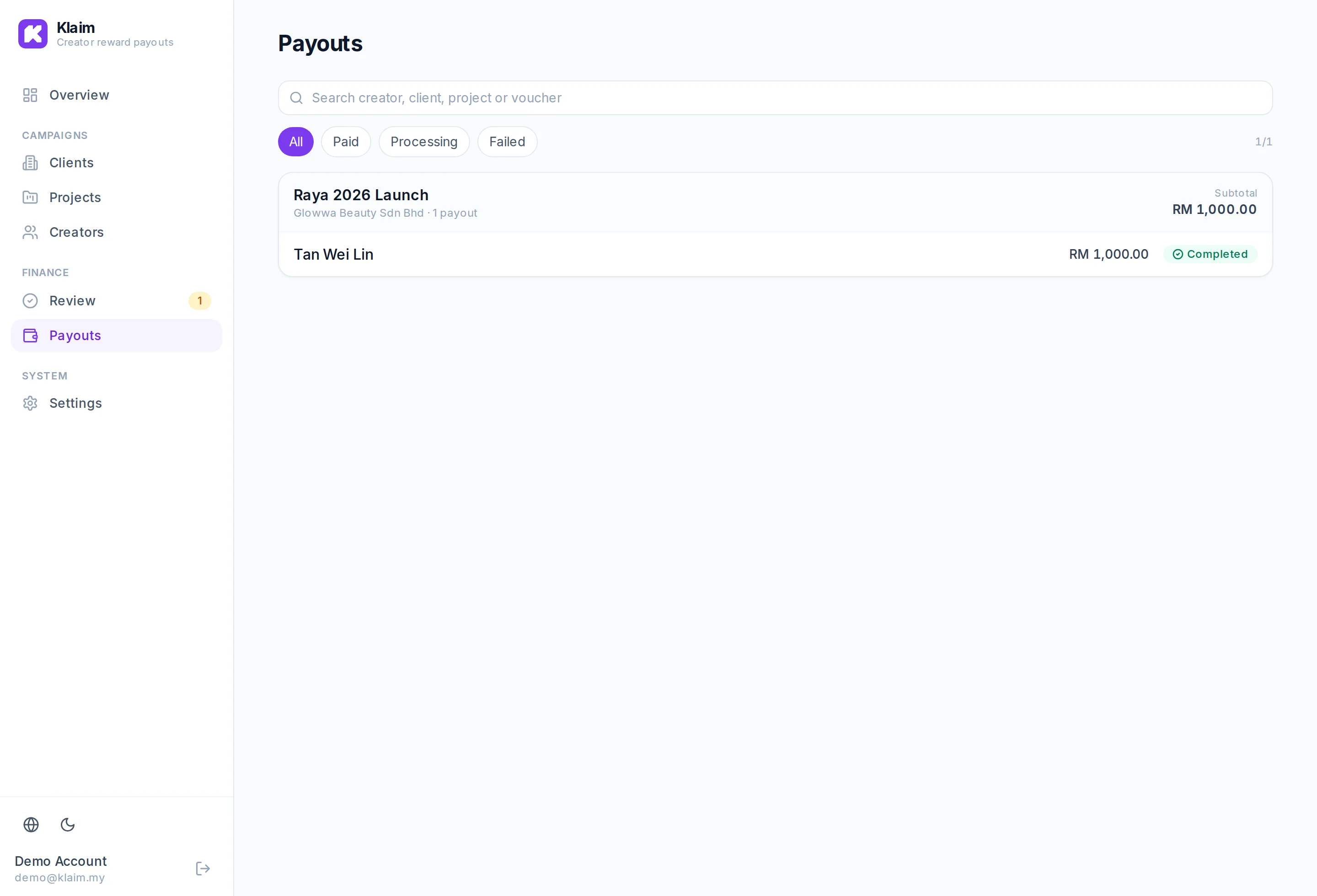
Every completed payment is logged with amount, method and status — your audit trail.
How creators submit (public link)
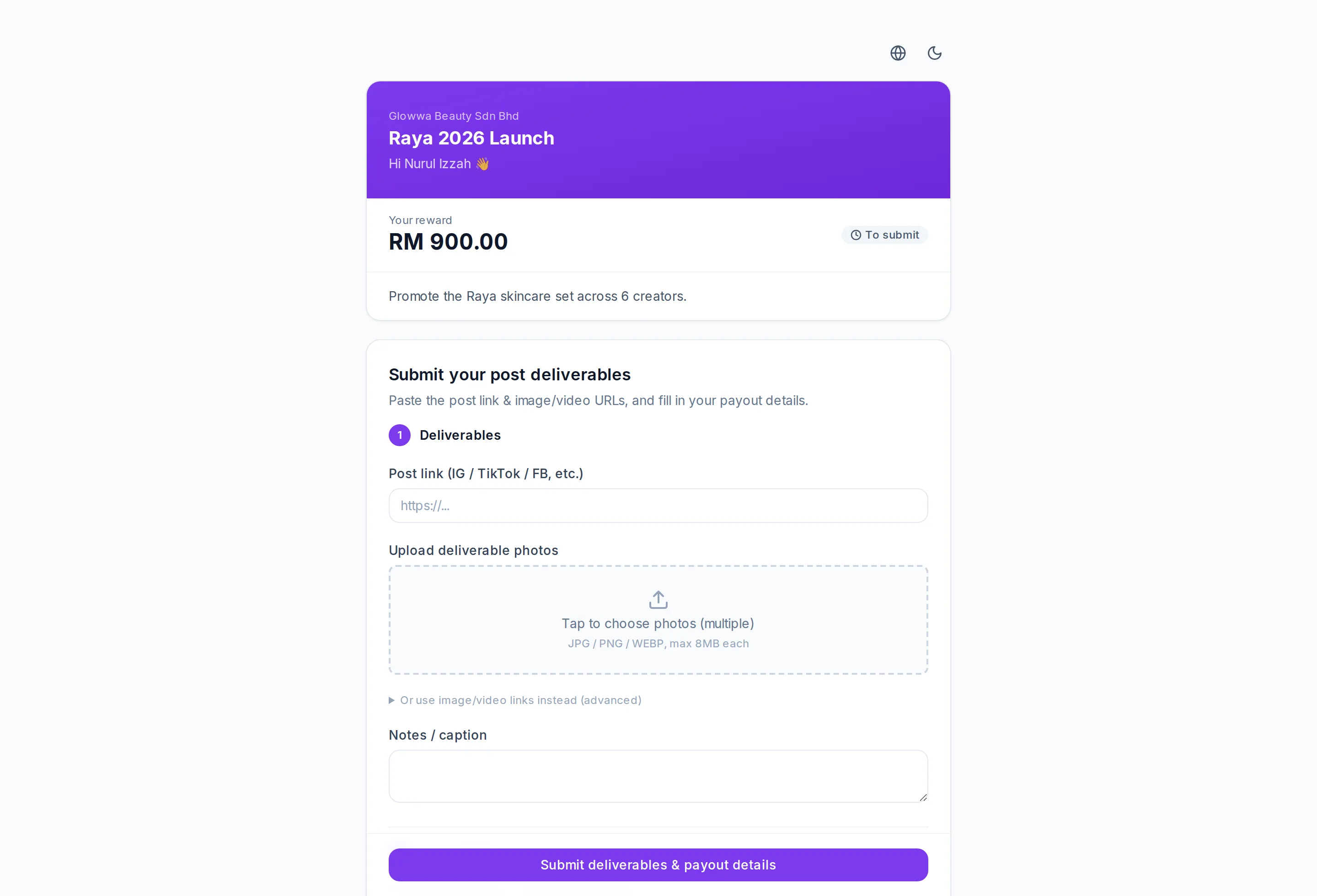
Send each creator their unique link — no account needed. They paste the post link, upload deliverables, and fill in their payout details.
Share results with the brand
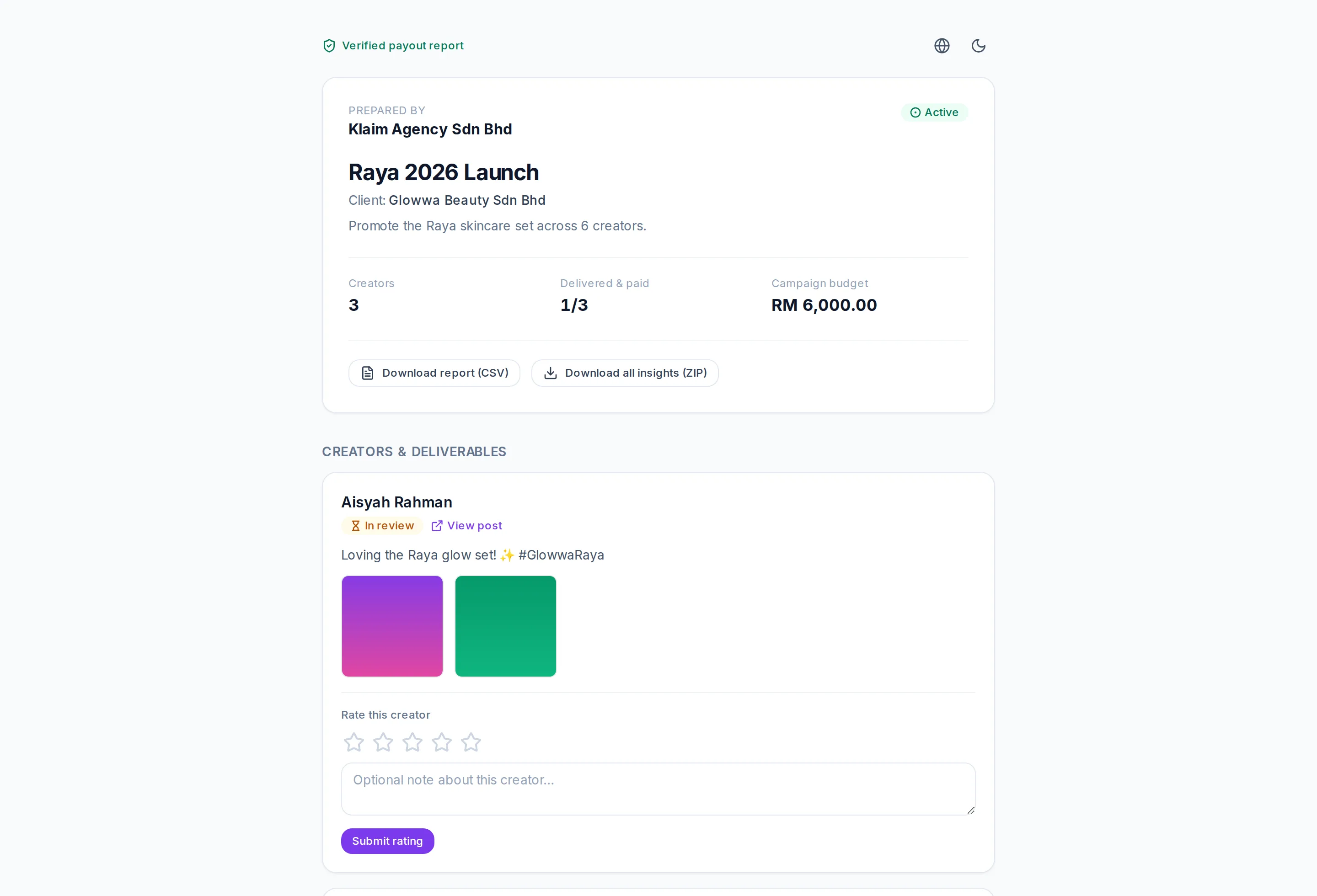
The public client report shows the campaign’s creators and proof of payout. Send it to the brand — nothing sensitive (bank/IC) is ever exposed.
Ready to start?
Create your account